|
Mapping
Winlog32 main menu/options/maps.
Interactive mapping using Openstreetmap map tiles and 'Leaflet' and other javascript libraries.
PLEASE NOTE: The Maps feature ONLY works on Windows 10 and after.
The mapping option is available from version 7.3.56 onwards, 4 files are installed into
the ..Winlog32\Mapping folder, all files are required by the mapping function.
The map tile provided is 'OpenStreetMap'.
Winlog32 has no control over the actual map display contents, only its actions and overlays.
Please be aware that the 'OpenStreetMap' server is the tile provider (the actual map images),
this means every pan or zoom event, map tiles(images) are downloaded from OpenStreetMap's servers for you to display.
Many thousands of tiles are required to cover the whole world in great detail, although
there should be browser caching (unless this is turned off on you browser settings),
which will help with speed and minimise loading on their servers.
Keep in mind that tile downloads may be throttled back or halted by Openstreetmap if there is excessive use of this feature.
Please use restraint to comply with OpenStreetMap 'fair use' policy. (e.g. usage during a contest)
Drawing 'Overlays' onto the map are NOT part of OpenStreetMap restrictions, they are drawn locally
so only PC speed and visual impact are considerations with these functions.
Menu/Options/Map - enable option.
The 'Map' icon should appear in the main Winlog32 toolbar and a map window should appear
with flat map of the world, the map window can be re-sized as required.
If the Map window opens with a grey background and a map is not displayed,
then this feature is not supported by your operating system or there is another problem.
Otherwise there should be a world map which can be panned and zoomed in the normal fashion.
Clicking on the Map icon in the main Winlog32 Toolbar will hide/show the map window.
When the map option is enabled, it is always 'active' regardless whether visible or not.
The world map is restricted to a single 'world', so infinite E/W or N/S panning is not possible.
Options.
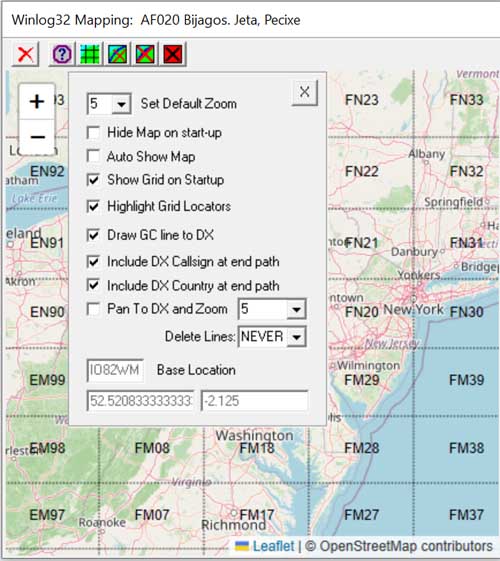
Various Options are provided to tailor the display to your needs
Most options are self-explanatory, but a brief explanation follow.
Base location: Set by your Grid Locator from which great circle lines are drawn and distance calculations made.
This setting is found in the main Winlog32 menu/options/settings -tab 'Change User', otherwise a default of 0/0 will be used.
Tip: resting a mouse cursor over a toolbar icon will briefly describe its usage.
Toolbar option #1: Hide/Show the Map window; N.B. This does NOT close the map window, that must be done by deselecting
in main Winlog32 menu/options/Maps -enable (disable).
Toolbar option #2: Options Panel.
Options.
Set Default Zoom: The default zoom when starting Winlog32 and the map is enabled.
Auto Show Map: When any action takes place on the map, it is becomes visible (when hidden).
If this action becomes obtrusive then deselect this option.
Show Grid on Start up: (Default), disable to not show grid when Winlog32 starts and Maps are enabled.
The grid can be called back at any time using the Mapping Toolbar #3.
Zooming in/out has an effect on how the grids are displayed, this is intentional e.g.
when the map is zoomed out beyond a certain limit only the larger squares (fields) are shown.
Highlight Grid Locators: A look-up grid locator action will highlight that grid in a transparent red colour
Draw Great Circle line to DX: Draws the path from your QTH to DX QTH.
This function Will draw the GC line (in blue) when QSOs are added to the log, or by other manual 'look-up DX on map' (in red).
The map title bar will show approximate distance in km and miles with short path heading and
long path heading where distance is greater than 12,000km.
N.B. The path drawn is to that indicated by the prefix/country database, however this will be overrided if there
is a Grid Locator in the 'Remarks' field. Some inaccuracies may happen with either method.
Show Sun Shadow: The solar shadow and grey line are drawn on the map: The shadow is updated at 1 minute intervals.
Mapping Toolbar #7 will show/hide the shadow.
Include DX Callsign at end path: Only works with Great Circle Lines option.
Include DX country name at end path: Only works with Great Circle Lines option
Pan to DX and Zoom [val]: A DX lookup will pan map view towards that location and zoom to the level selected, [1] = zoom out max, [10] = zoom in.
Delete Lines: Great Circle lines will be automatically deleted after [X] number of lines have been generated. [NEVER] will not delete GC lines.
The Mapping Toolbar icon #4 'toggle lines, will show/hide the GC lines (will NOT delete them).
Mapping Toolbar option #5 will permanently delete GC lines. This will include any previous GC lines
generated by any method and associated callsign/country.
Real-Time use.
Various options are available to pan/zoom or draw great circle paths during real-time Log QSO save events.
Some of these options should be turned off if intensive use is planned, e.g. contesting,
this will preserve tile usage (see above remarks) and reduce the 'hang time' by map events during logging.
Please note: All enabled mapping functions are still active even if the map window is not
visible if the map option is enabled.
To completely turn off mapping, disable the option in Winlog32 main menu/options/map.
The DX position look-up is that generated by the prefix database (latitude/longitude) from the current callsign,
or if a grid locator has been added to the 'Remarks' field, the center of 4 figure locator square is used,
improved accuracy occurs with a 6 figure locator.
Drawing Great Circle Path.
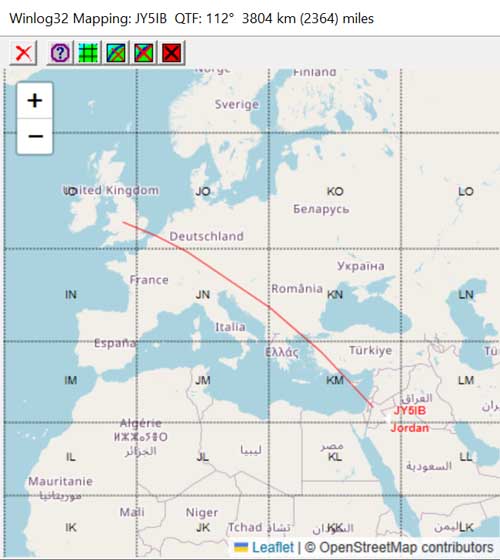
Other Usage.
Right-click a Callsign in Log Page, option, 'look-up on map', this should set the map view to that country.
Right-click Log Page 'Remarks' field containing a grid locator, will set the map view to that grid.
Right-click Log Page 'Remarks' field containing a valid IOTA reference (example IOTA EU-001"),
will set map view to that island or group with IOTA reference and name.
These right-click options are repeated in the DXCluster window and various database windows like DXCC, WAE, etc.
where appropriate.
IOTA.
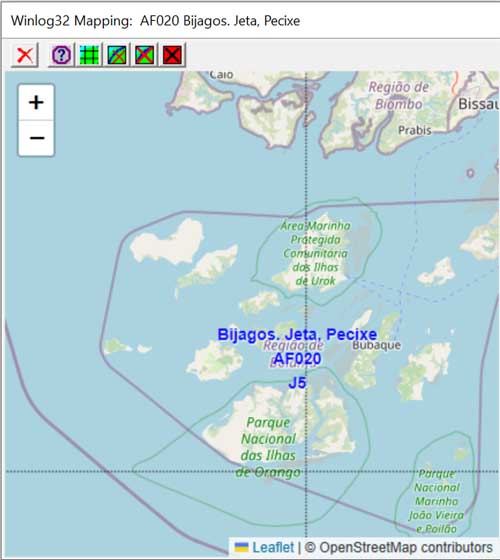
IOTA Database
Right-click IOTA number in the IOTA database list and select look up IOTA on Map will zoom the map view to that island/group,
with reference and island group name included.
Grid Locators.
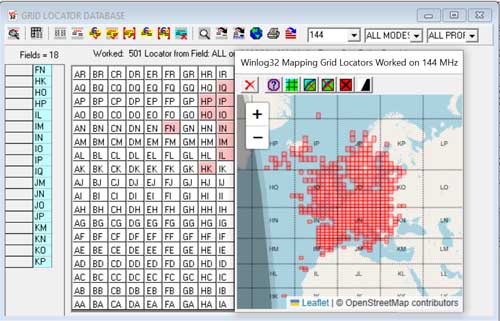
Grid Locator database, the VHF Database toolbar 'map' icon will draw grid locator highlights in red for
the current query, e.g. worked/confirmed.
The mapping takes place after the query has been generated by the VHF Database toolbar options.
The results can be viewed on the map using the VHF Database toolbar 'map' icon.
The current highlighted layer will be deleted when the next query result is viewed on the map.
Clicking on a grid in the VHF Database Grid Display will view that grid locator on the map.
Mapping toolbar #5 will delete the grid locator highlights.
Mapping Toolbar #3 will show/hide the grid locator layer (but not the highlights).
|